Blog

  • Mitten

    Mitten

    Mitten is a Python script designed to monitor GitHub repositories for new commits and send notifications to a specified Discord channel. The script leverages the GitHub API to fetch commit information and Discord Webhooks to post notifications.

    Features

    • Fetches commits from specified GitHub repositories.
    • Sends commit notifications to Discord with detailed commit information.
    • Ability to mention specified roles in commit notifications.
    • Supports selecting specific branches from each repository.
    • Logs commit information locally to avoid duplicate notifications.
    • Fetches commits pushed since the last runtime of the script, ensuring that commits pushed during downtime are still fetched in the next run.
    • Configurable through environment variables.

    Requirements

    • Python 3.7+
    • requests library
    • python-dotenv library

    Configuration

    Create a ‘.env‘ file in the same directory as the script with the following variables:

    • REPOS: A comma-separated list of repositories to monitor. You can also optionally specify a branch for each repo by adding ‘:branch_name’ (e.g., ‘owner/repo1,owner/repo1:dev_branch,owner/repo2‘).
    • DISCORD_WEBHOOK_URL: The Discord webhook URL where notifications will be sent.
    • GITHUB_TOKEN: (Optional but highly recommended) Your GitHub API token to avoid rate limiting. Learn more about creating a personal access token here.
    • CHECK_INTERVAL: The interval (in seconds) at which the script checks for new commits. Make sure this value exceeds the number of repos to monitor.
    • DISCORD_EMBED_COLOR: (Optional) The color of the commit embeds sent to Discord. The color must be provided in hexadecimal format using the prefix ‘0x’ (e.g., ‘0xffffff’).
    • ROLES_TO_MENTION: (Optional) The role IDs (NOT role name, but the corresponding 19 digit role ID) to mention in Discord when a new commit is detected. Separate each role ID with a comma. You can also ping @everyone by simply setting this to ‘@everyone’.
    • WEBHOOKS_ON_REPO_INIT: Choose whether to send a message to Discord whenever a new repository is initialized.
    • PREFER_AUTHOR_IN_TITLE: Preference for title style in commit messages. If set to True, the commit author’s username and avatar will be used in the title of the embed. If set to False, the repo name and the repo owner’s avatar will be used.
    • TEST_WEBHOOK_CONNECTION: Send a test message to Discord when the script is started.

    Installation

    1. Clone the repository:

      git clone https://github.com/joobert/mitten.git
      cd mitten
    2. Install dependencies:

      pip install -r requirements.txt
    3. Create a .env file with the following content:

      REPOS=owner/repo1,owner/repo1:dev_branch,owner/repo2,owner/repo3
      DISCORD_WEBHOOK_URL=your_webhook_url
      GITHUB_TOKEN=your_github_token
      CHECK_INTERVAL=60
      DISCORD_EMBED_COLOR=
      ROLES_TO_MENTION=
      WEBHOOKS_ON_REPO_INIT=True
      PREFER_AUTHOR_IN_TITLE=False
      TEST_WEBHOOK_CONNECTION=False
    4. Run the script:

      python mitten.py

    (Optional) Running with Docker

    Ensure you have both Docker and Docker Compose installed on your machine.

    1. Clone the repository:

      git clone https://github.com/joobert/mitten.git
      cd mitten
    2. Create a .env file with the following content:

      REPOS=owner/repo1,owner/repo1:dev_branch,owner/repo2,owner/repo3
      DISCORD_WEBHOOK_URL=your_webhook_url
      GITHUB_TOKEN=your_github_token
      CHECK_INTERVAL=60
      DISCORD_EMBED_COLOR=
      ROLES_TO_MENTION=
      WEBHOOKS_ON_REPO_INIT=True
      PREFER_AUTHOR_IN_TITLE=False
      TEST_WEBHOOK_CONNECTION=False
    3. Create empty commit_log.json and mitten_logs.txt files:

      touch commit_log.json mitten_logs.txt
    4. Start the service with Docker Compose:

      docker compose up -d

    Important Notes

    • Initial Run: On the first run (and for each subsequent repository added down the line), Mitten will initialize each repository by fetching its entire commit history to avoid spamming notifications and fetch commits pushed during the script’s downtime on the next run. This process can be API heavy and time-consuming for large repositories, but only needs to be done once per repository.

    • GitHub Token: It is highly recommended to set a GitHub API token to avoid API rate limiting issues. Without the token, you will be limited to 60 requests per hour, which might not be sufficient for monitoring multiple repositories, nor sufficient for the initial run of a large repository. Setting the token increases this limit significantly (5000 requests per hour) ensuring you won’t run into issues.

    • Logging: Mitten creates and logs commit information locally in a file named ‘commit_log.json‘ to ensure that no duplicate notifications are sent. The script also saves its runtime logs to a file named ‘mitten_logs.txt‘. Both of these should be kept in the same directory as the script.

    Contributing

    Contributions are welcome! Please feel free to submit a Pull Request or open an Issue.

    License

    MIT

    Visit original content creator repository

  • travel-buddy

    App Screenshot

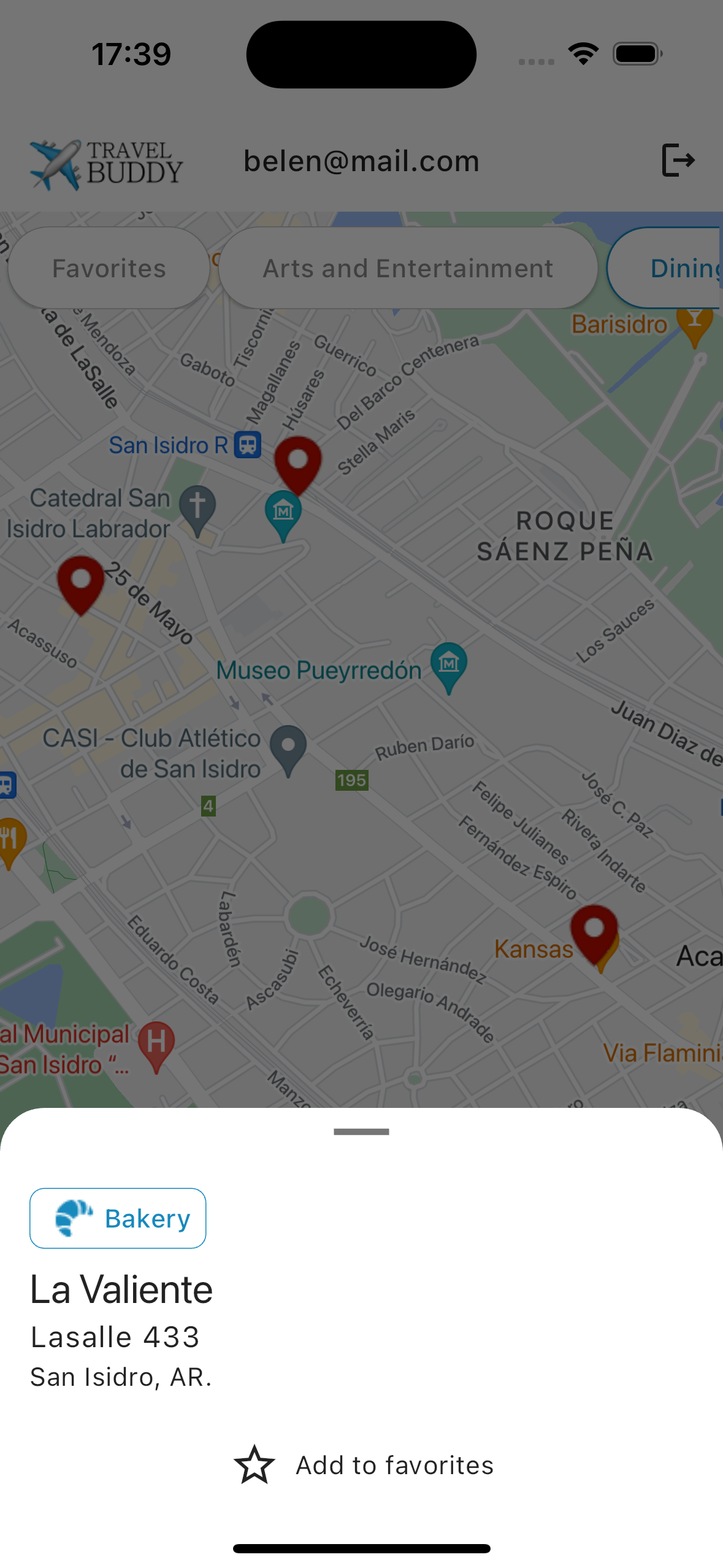
    Travel Buddy is a Flutter app that helps users explore and mark locations on a Google Map based on Foursquare categories. The app integrates Firebase Authentication for user management and Cloud Firestore for storing user-specific favorites.

    Features

    • User Authentication: Users can sign up and sign in using Firebase Authentication.
    • Google Map Integration: Users can view a Google Map and mark locations based on Foursquare categories.
    • Foursquare Places API: The app fetches places data from the Foursquare API to display options on the map.
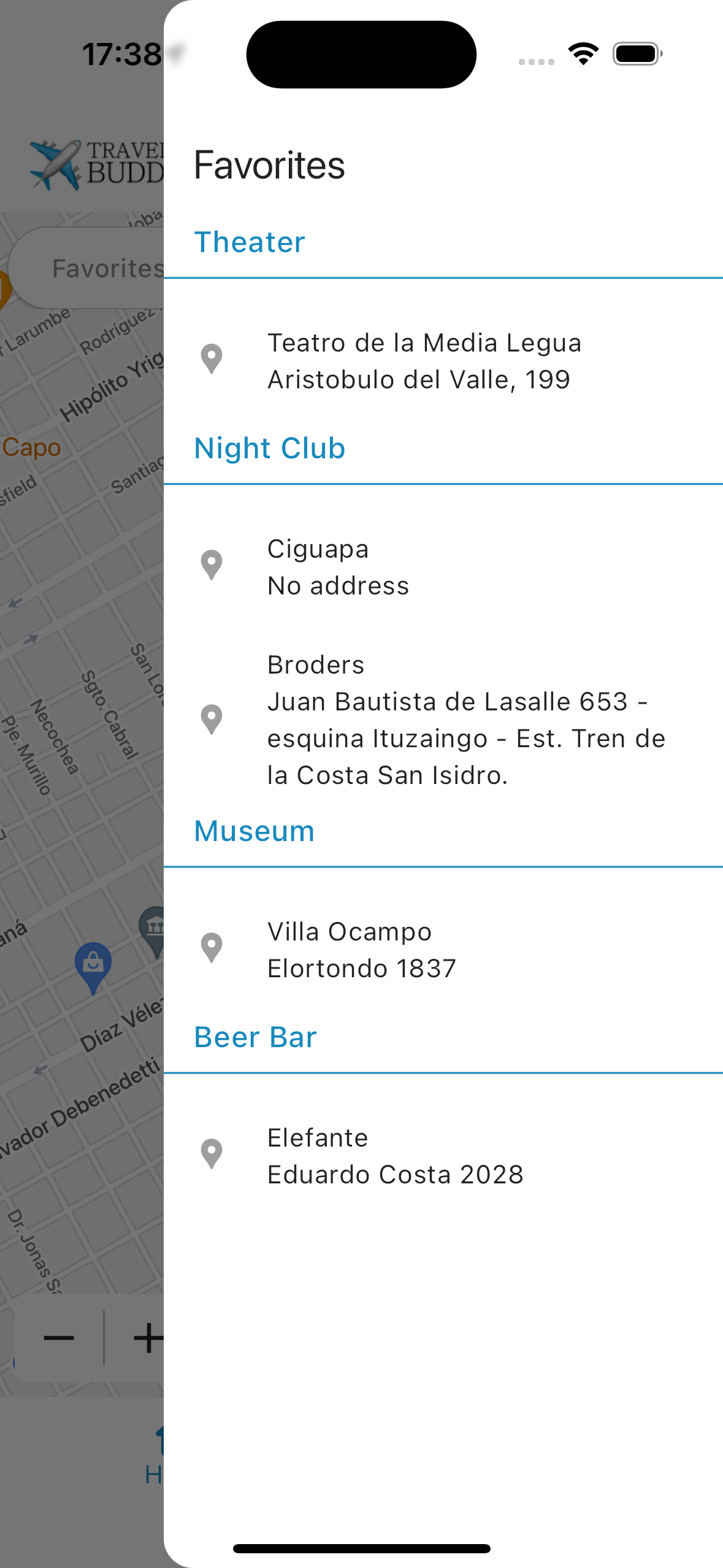
    • Favorites Management: Users can save marked locations as favorites, which are stored in Firebase Cloud Firestore and are specific to each authenticated user.
    • State Management: Utilizes various state management solutions:
      • BLoC for authentication and Foursquare connections.
      • GetX for accessing Foursquare place details.
      • A singleton pattern for managing Firebase connections and retrieving the user’s favorites.
    App Screenshot

    Technologies Used

    • Flutter: SDK version >=3.1.0 <4.0.0
    • Firebase: Firebase Authentication and Cloud Firestore.
    • Google Maps: For displaying locations.
    • Foursquare API: For accessing place data.
    • State Management: BLoC, GetX, Singleton, Stateful widget.

    Getting Started

    Prerequisites

    • Flutter SDK installed (version >=3.1.0 <4.0.0)
    • Dart SDK
    • Firebase account
    • Foursquare API key

    Installation

    1. Clone the repository:

      git clone https://github.com/belenyb/travel_buddy.git
      cd travel_buddy
    2. Install the dependencies:

      flutter pub get
    3. Configure Firebase:

    • Create a Firebase project in the Firebase Console.
    • Add your Flutter app to the project.
    • Download the google-services.json (for Android) and/or GoogleService-Info.plist (for iOS) files and place them in the appropriate directories:
      • Android: android/app/
      • iOS: ios/Runner/
    1. Set up Foursquare API:
    • Sign up for a Foursquare developer account and create a new app to obtain your API key.
    • Create an .env file with your Foursquare API key and place it on the root of your project.
    1. Run the app:
      flutter run
    App Screenshot

    Usage

    Sign Up / Sign In

    Launch the app and create a new account or sign in to your existing account.

    Explore Locations

    Use the Google Map interface to explore nearby locations categorized by Foursquare.

    Mark Favorites

    Tap on a location to mark it as a favorite. Your favorites are saved and can be accessed later.

    App Screenshot

    Visit original content creator repository
  • react-legra

    react-legra

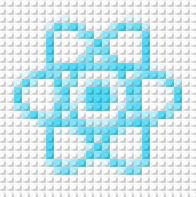
    Draw LEGO like brick shapes using legraJS and Reactjs

    NPM JavaScript Style Guide

    react-legra provides a wrap around the common components of legraJS

    Install

    npm install --save react-legra
    
    // or
    
    yarn add react-legra

    Usage

    To start drawing, you first need to create a canvas to draw on, the <Board /> component will do that for you.

    The <Board /> component recieve the same props as a canvas element, and additionally you can set the canvas prop, to reference all the drawing to an external canvas

    All the components but <Board />, recieve (optionally) some configuration props:

    options: { // To control the look and feel of the component
      filled?: false,
      color?: blue
    },
    bs: 24 // Brick size, default to 24
    import React from 'react'
    import Board, { Line } from 'react-legra'
    
    function MyComponent() {
    
      return (
        <Board>
          <Line from={[3, 3]} to={[10, 10]} />
          // or
          // <Board.Line from={[5, 0]} to={[10, 10]} />
        </Board>
      )
    }

    Components


    <Line />

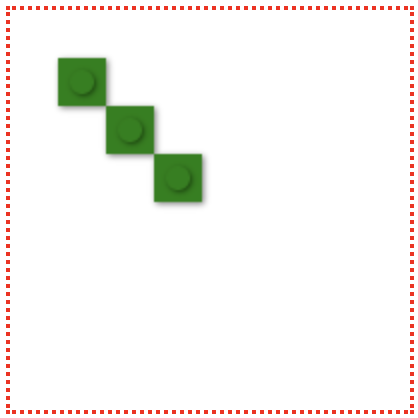
    Draw a line from (x1, y1) to (x2, y2)

    prop type default
    from (required) Array[x1, y1]
    to (required) Array[x2, y2]

    line

    import Board, { Line } from 'react-legra'
    
    function MyComponent() {
    
      return (
        <Board>
          <Line from={[1, 1]} to={[3, 3]} options={{ color: 'green' }} />
        </Board>
      )
    }

    <Rectangle />

    Draw a rectangle given the top-left coordenates [x, y] (start) as the center point and with the specified width and height

    prop type default
    start (required) Array[x, y]
    width (required) Integer
    height (required) Integer

    line

    import Board, { Rectangle } from 'react-legra'
    
    function MyComponent() {
    
      return (
        <Board>
          <Rectangle start={[.2, 3]} width={8} height={2}/>
        </Board>
      )
    }

    <LinearPath />

    Draw a set of lines connecting the specified points. points is an array of arrays of points (x, y).

    prop type default
    points (required) Array[[x1, y1], [x2, y2]…]

    linear

    import Board, { LinearPath } from 'react-legra'
    
    function MyComponent() {
    
      const points = [[1, 1], [4, 1], [1, 4], [4, 4]]
    
      return (
        <Board>
          <LinearPath points={points} />
        </Board>
      )
    }

    <Image />

    Draw an image with Legos!!!

    prop type default
    src (required) String

    image

    import Board, { Image } from 'react-legra'
    
    function MyComponent() {
    
      return (
        <Board>
          <Image src="/spong.jpg" bs={8} />
        </Board>
    }

    <Circle />

    Draw a circle from the center point and with the given radius

    prop type default
    center (required) Array[xc, yc]
    radius Integer 10

    circle

    import Board, { Circle } from 'react-legra'
    
    function MyComponent() {
    
      return (
        <Board>
          <Circle center={[3, 3]} radius={2} />
        </Board>
      )
    }

    <Ellipse />

    Draw an ellipse from the center point and the horizontal and vertical axis lenght controlled by hAxis and vAxis props

    prop type default
    center (required) Array[xc, yc]
    hAxis Integer null
    vAxis Integer null

    ellipse

    import Board, { Ellipse } from 'react-legra'
    
    function MyComponent() {
    
      return (
        <Board>
          <Ellipse center={[3, 3]} vAxis={2} hAxis={3} />
        </Board>
    }

    <Arc />

    arc

    An arc is just a section of an ellipse controlled by the additional start and stop props which represent the angle of the arc, also you can “close” the arc form by these 2 points with the filled prop set to true

    prop type default
    center (required) Array[xc, yc]
    hAxis Integer null
    vAxis Integer null
    start Integer null
    stop Integer null
    filled Boolean false
    import Board, { Ellipse } from 'react-legra'
    
    function MyComponent() {
    
      return (
        <Board>
          <Board.Arc center={[5, 3]} vAxis={4} hAxis={5} start={Math.PI} stop={Math.PI * .5} />
          <Board.Arc
            center={[8, 0]}
            options={{ color: 'pink'}}
            vAxis={5}
            hAxis={5}
            start={Math.PI}
            stop={-Math.PI * .5} />
        </Board>
    }

    <Polygon />

    Draw a polygon with the given vertices

    prop type default
    vertices (required) Array[[]]

    polygon

    import Board, { Polygon } from 'react-legra'
    
    function MyComponent() {
    
      const vertices = [
        [0, 0],
        [0, 7],
        [7, 0],
        [7, 7]
     ]
    
      return (
        <Board>
          <Polygon vertices={vertices} options={{ color: 'yellow' }} />
        </Board>
    }

    <BezierCurve />

    Draws a bézier curve from (x1, y1) to (x2, y2) with (cp1x, cp1y) and (cp2x, cp2y) as the curve’s control points.

    prop type default
    from (required) Array[x1, y1]
    to (required) Array[x2, y2]
    controlPointX (required) Array[x1, y1]
    controlPointY (required) Array[x2, y2]

    blizercurve

    import Board, { BeziearCurve } from 'react-legra'
    
    function MyComponent() {
    
      return (
        <Board>
          <BezierCurve from={[3, 3]} to={[22, 14]} controlPointX={[8, 30]} controlPointX={[18, 1]} />
        </Board>
    }

    <QuadraticCurve />

    Draws a quadratic curve from (x1, y1) to (x2, y2) with (cpx, cpy) as the curve’s control point.

    prop type default
    from (required) Array[x1, y1]
    to (required) Array[x2, y2]
    controlPoint (required) Array[x1, y1, x2, y2]

    quadraticcurve

    import Board, { QuadraticCurve } from 'react-legra'
    
    function MyComponent() {
    
      return (
        <Board>
          <QuadraticCurve from={[3, 3]} to={[22, 14]} controlPoint={[8, 30, 18, 1]} />
        </Board>
    }

    Development

    You’ll need run two process (2 tabs) for development:

    1.- Watch files and compile them to dist/, run on root directory

    npm start // Watch and Compile files changes

    2.- Run the example

    cd example
    npm start // Run the demo app

    After that each change you do will be reflected on the demo app

    Contributors

    License

    MIT © christo-pr

    Visit original content creator repository
  • FoxNap

    Fox Nap 🦊

    server + client mod mod loader: fabric lint status mod build status RPG build status supported versions Modrinth Downloads

    A Survival-, Multiplayer- and Copyright-friendly mod for adding custom music to Minecraft

    foxnap-banner

    Requires Fabric

    What is This?

    FoxNap is a simple “Vanilla Plus” mod for adding custom music discs to Minecraft.

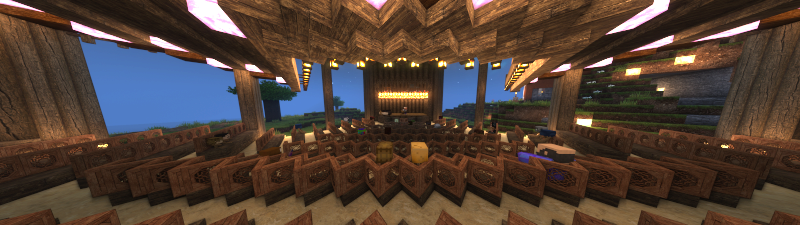
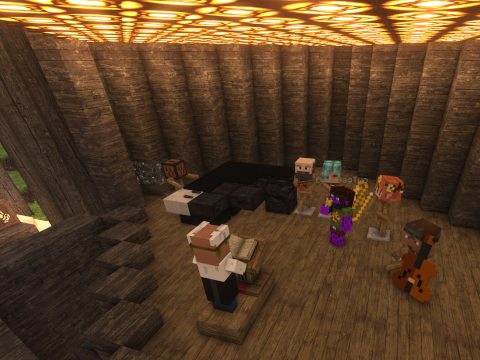
    FoxNap also adds custom musical instruments that you can play like goat horns, giving you the creative freedom to stage “live music” performances.

    The Armor Stand Ensemble

    Setup and Customization

    This mod comes pre-bundled with seven new music discs:

    1. “Colors,” by Tobu
    2. Camille Saint-Saëns: “Danse Macabre,” performed by Kevin MacLeod
    1. Nikokai Rimsky-Korsakov: “Flight of the Bumblebee” from Tsar Saltan, performed by The US Army Band

    all of which are permissively licensed under the terms specified here (I am redistributing them via this repo and mod under the compatible Creative Commons Attribution-ShareAlike 4.0 License).

    If this built-in playlist sounds like your jam, and you have no desire to add anything else, then congrats! This is easy! This is a Fabric mod with builds for 1.19+ and depends only on the Fabric API, so just download the appropriate build to your instance’s mods folder, start the game, and go find a village.

    But if you’re interested in some customization, read on:

    Resource Pack Generator

    While you can always manually convert mp3s and hand-edit JSON files to create a set of Fox Nap packs, this project provides an alternative in the form of a stand-alone and portable (read: no installation or setup required) resource pack generator.

    You can read more about that here.

    What About Multiplayer?

    When playing on a server, it’s the server’s datapacks and config file that will dictate:

    • how long each song will play
    • the redstone signal strength coming out of jukeboxes playing each disc
    • the number of tracks available from the Maestro

    but it’s each player’s resource pack and config file that will control:

    • the songs that each disc will play
    • the appearance (and description) of each disc
    • which discs show up as “placeholder” records

    Explicitly:

    • if the server has a greater number of discs specified than both what you’ve specified in your config, some discs will show up for you with placeholder textures and sound files
    • if you have more discs in your resource pack than are set on the server, then not all tracks will be available in your shared game
    • some music discs may continue silently after a song ends, and some might cut off

    Beyond the number of discs, though, there’s no reason why every player can’t come online with a completely custom playlist of songs with similar lengths!

    Obtaining Records and More!

    So now that you’ve registered these custom records to the game, how do you actually get them? Outside of commands (e.g. /give @s foxnap:track_1) and Creative Mode, the sole way to obtain FoxNap records is by trading with The Maestro, a new villager who has a Jukebox as a job site (note that The Maestro does not currently spawn naturally, but this feature is planned).

    The Maestro

    The Maestro will pay top dollar for tonewood–stripped blocks of rare wood types–goat horns and non-FoxNap records and sells, alongside your custom music discs, a wide variety of playable musical instruments (with textures adopted from the classic mxTune mod).

    Disabling The Maestro

    If you’d prefer not to add The Maestro to your game (and would like to obtain your music discs in some other way, such as a datapack), you can disable this part of the mod by editing your foxnap.yaml config file and adding the following line:

    enable_maestro: false

    Fox Nap Vanilla

    With the release of Minecraft 1.21, music discs are now entirely data-driven! As such, the resource and datapacks generated by the Fox Nap Resource Pack Generator are entirely compatible with the vanilla game. Details can be found on the wiki.

    Contributing

    Find a bug? Have a suggestion or a question? Want to contribute a new feature or enhancement? Open an issue!

    Building the Mod from Source

    1. Clone this repo
    2. Download and install a Java 21 OpenJDK such as Temurin
    3. From the root of this repo, run ./gradlew build or load this project into your favorite Java IDE and run the “build” gradle task

    The compiled jar will be found under build/libs.

    Building the Resource Pack Generator from Source

    Instructions for building the resource pack generator can be found on the wiki

    License and Acknowledgements

    All code in this repository is licensed under GPLv3.

    Builds of the FoxNap Resource Pack Generator (FoxNapRPG) include binaries of ffmpeg which is licensed under the GNU Lesser General Public License (LGPL) version 2.1 or later and incorporates components licensed under the GNU General Public License (GPL) version 2 or later.

    All assets in this repository are distributed under the Creative Commons Attribution-ShareAlike 4.0 License unless otherwise stated.

    Instrument icons are taken from the mod mxTune by @AeronicaMC.

    Instrument sounds are courtesy of Philharmonia‘s sound sample library.

    Many thanks to @FoundationGames for making the code of his awesome Sandwichable mod so easy to understand and learn from, and similarly to Modding by Kaupenjoe for his awesome and detailed tutorials on Minecraft modding, in this case his tutorial for adding a custom villager profession.

    Also shouting out @Siphalor and Reddit’s jSdCool for this conversation on adding non-mod external libraries to a Fabric mod. It should not have been this hard to add the SnakeYAML library to a mod.

    Visit original content creator repository
  • revu-cli

    Logo

    revu is a comprehensive command-line tool designed to streamline the code review process. Leveraging the advanced capabilities of GPT-4 and the GitHub API, it can analyze and provide insightful reviews on pull requests, local changes, and individual files. Additionally, revu offers an intuitive commit message generator that uses local diffs and commit history to propose appropriate commit messages. Its flexible nature aims to cover various aspects of code review, offering an efficient toolset for developers.

    ⚠️ Disclaimer: This is a test project. The reviews generated by this tool may not always be accurate, useful, or make sense. Always perform manual code reviews to ensure the quality of your code.

    Getting Started

    Prerequisites

    • You’ll need to have Node.js and npm installed on your machine.
    • An OpenAI API key for using GPT-4 and a GitHub token for accessing the GitHub API.

    Switching to GPT-4 Model

    revu is initially set to use the GPT-3.5-turbo model. If you wish to switch to GPT-4, you can do so by modifying your revu.json config file:

    1. Run the config command if you haven’t done so already. This will generate the revu.json config file:
    revu config
    1. Locate your revu.json config file. By default, it is saved in the .revu directory in your home directory (~/.revu).
    2. Find the llm section and then the openai subsection within it.
    3. Change the value of openaiModel from gpt-3.5-turbo to gpt-4.
    4. Save and close your revu.json config file.

    Remember that using GPT-4 may result in increased API costs. Please refer to OpenAI’s pricing for more information.

    Installation

    You can install revu globally using npm by running the following command:

    npm i -g revu-cli

    Alternatively, you can clone the repository and install the dependencies locally:

    1. Clone the repository:
    git clone https://github.com/phmz/revu-cli.git
    1. Navigate to the project directory:
    cd revu-cli
    1. Install dependencies:
    npm install
    1. Build the project:
    npm run build

    Usage

    Before using revu, you need to set up the configuration with your OpenAI API key and GitHub token. You can do this with the following command:

    revu config

    This will prompt you to enter your OpenAI API key and GitHub token.

    For a comprehensive list of all available commands and options in revu, run the help command:

    revu help

    This will display a list of all the available commands, their descriptions, and options you can use with revu.

    Environment Variables

    revu can also be configured using environment variables. If an environment variable is not provided, revu will use the default value.

    Here are the available environment variables:

    • GIT_MAX_COMMIT_HISTORY: Maximum number of commit history entries to fetch (default: 10).
    • GIT_IGNORE_PATTERNS: A comma-separated list of regular expression patterns of files to ignore (default: []).
    • GITHUB_API_URL: Custom URL for the GitHub API (default: https://api.github.com).
    • GITHUB_TOKEN: GitHub personal access token.
    • OPENAI_API_URL: Custom URL for the OpenAI API (default: https://api.openai.com).
    • OPENAI_API_KEY: OpenAI API key for accessing the OpenAI API.
    • OPENAI_MODEL: OpenAI model to use (default: gpt-3.5-turbo).
    • OPENAI_TEMPERATURE: Temperature parameter for OpenAI model (default: 0).

    Local Code Review

    revu can analyze local changes in two ways:

    1. Analyzing all local changes

    If you want to analyze your local changes, navigate to the root directory of your local Git repository and run the following command:

    revu local

    revu will then analyze your local changes and provide you with a review.

    2. Analyzing a specific file

    If you want to analyze a specific file in your local directory, navigate to the root directory of your local Git repository and run the following command:

    revu local --directory <directory> --filename <filename>

    Replace <directory> with the relative path of the directory to search and <filename> with the name of the file to review.

    Generate Commit Message

    revu can propose commit messages based on local diffs and commit history. To use this feature, run the following command:

    revu commit

    revu will prompt you to select the files you wish to commit. Once the files are selected, revu fetches the commit history and proposes a commit message. If you agree with the suggested commit message, you can proceed to commit your changes right away. If there are unselected files left, revu will ask you if you wish to continue the commit process.

    Pull Request Review

    If you want to analyze a pull request, run the following command:

    revu pr <repository> <pull_request_number>

    Replace <repository> with the repository to review in the format owner/repository, and <pull_request_number> with the number of the pull request to review. For example:

    revu pr phmz/revu 42

    revu will then fetch the pull request details, analyze the changes, and provide you with a review.

    Ignoring Files

    The revu CLI tool allows you to ignore certain files during your review process by using regular expression patterns. You can define these patterns either through a configuration file or via an environment variable. The CLI tool will ignore files that match any of the provided patterns.

    Via Configuration File

    You can define an array of ignorePatterns under the git section in your revu.json configuration file, like so:

    {
      "git": {
        "ignorePatterns": [".*lock.*", "another_pattern", "..."]
      }
    }

    Via Environment Variable

    Alternatively, you can use the GIT_IGNORE_PATTERNS environment variable to define a comma-separated list of regular expression patterns:

    export GIT_IGNORE_PATTERNS=.*lock.*,another_pattern,...

    Pipeline Integration

    revu can be seamlessly integrated into your GitHub pipeline. This allows automatic code review for every commit in a pull request with the review results posted as a comment on the PR. Detailed instructions on how to set up this integration can be found in the pipeline integration guide.

    Development

    revu is built with TypeScript. Contributions are welcome!

    Code style

    This project uses ESLint for linting.

    You can run the linter with:

    npm run lint

    Visit original content creator repository

  • stardewvalley-water-bot

    Nasıl Kullanılır

    Günaydın!

    Mahsullerinizi sulama zamanı.

    Sulama Kabınızı çıkarın ve güzel mahsullerinizden herhangi birine sol tıklayın.

    Mahsulleriniz için duyduğunuz sevginin bir mucizesiyle, bir düğmeye bile basmadan geri kalanlarını sulamaya kapılırsınız.

    Sulama kabınızı içgüdüsel olarak doldurmak için daha fazla su otomatik olarak alınır, hala açık bir zihin durumunda olursunuz.

    Herhangi bir düğmeye basarak erken uyanabilirsiniz.

    Endişelenmeyin, sulamaktan bayılmayacaksınız, dayanıklılığınız bitmeden duracaksınız.

    Uygulama

    1. Tetikleyici

    Mod, oyuncunun sağ tıklamasını dinleyerek başlar. Oyuncu sulama kabıyla bir bitkiye tıklıyorsa, bot başlar.

    2. Oyuncunun Çiftliğini Yükleme

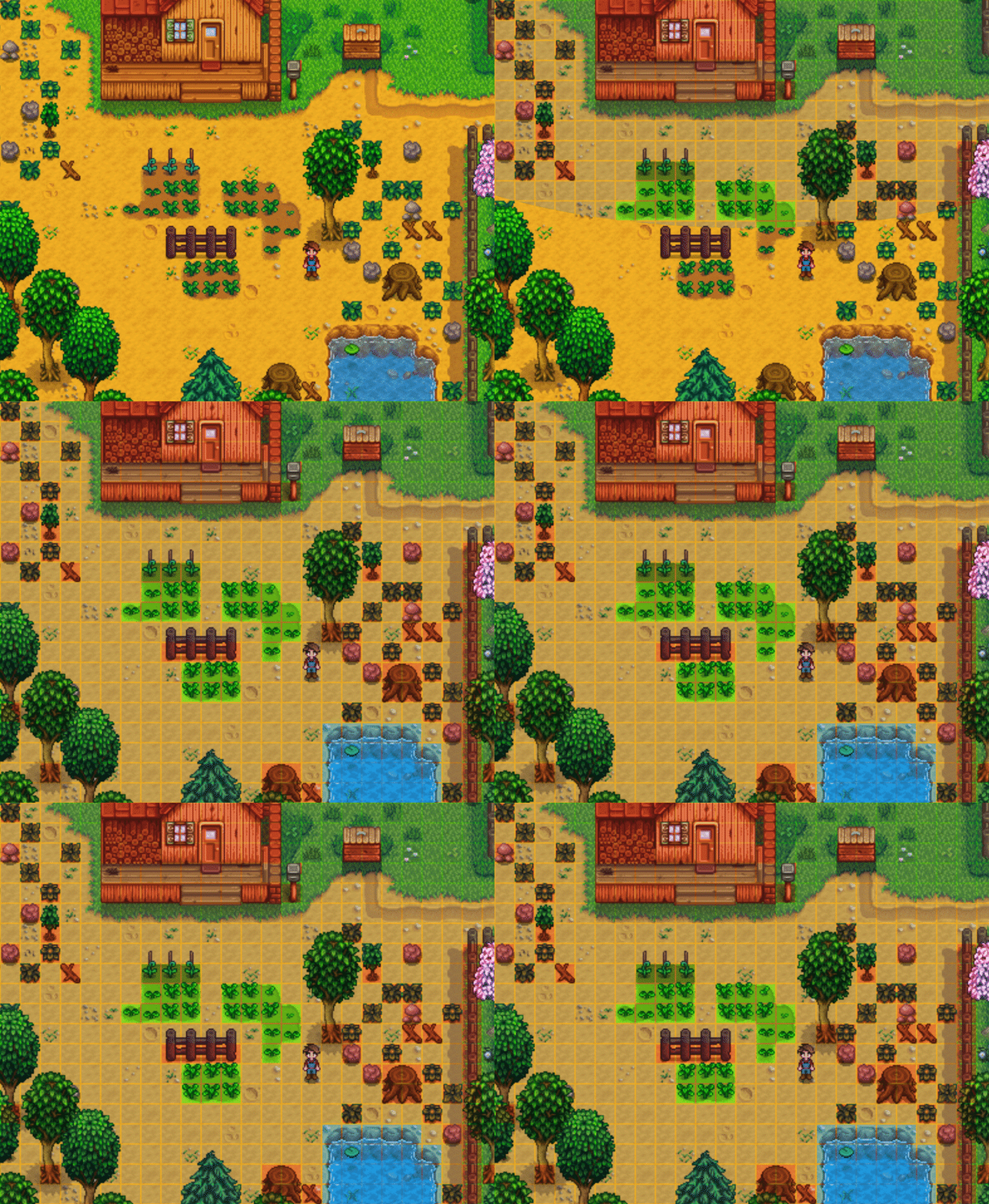
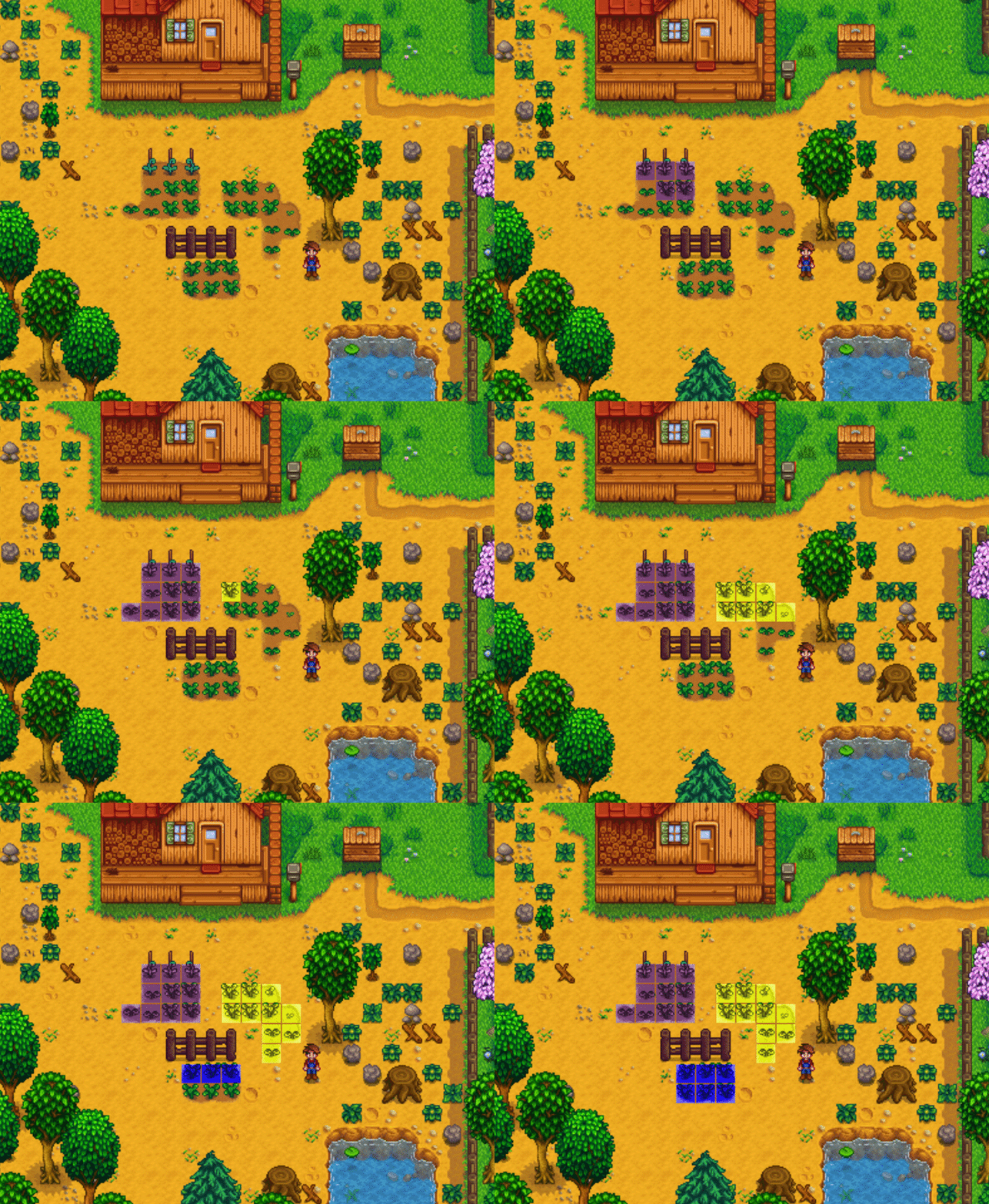
    Bot önce çiftlik haritası verilerini tarar, karodan karoya geçerek aşağıdaki özellikleri işaretler:

    Özellik Açıklama
    Sulanabilir Karoya su vermek gerekiyor mu?
    Engel Karo, oyuncunun üzerine yürümesine izin veriyor mu?
    Su Oyuncu burada Sulama Kabını doldurabilir mi?

    Tüm karolar 2D bir diziye yerleştirilir. Sulanabilir mahsuller de kendi dizilerine yerleştirilir.

    Yukarıdaki resim için karolar aşağıdaki gibi renklendirilmiştir:

    Renk Sulanabilir Engel Su
    Yeşil Doğru Yanlış Yanlış
    Koyu Yeşil Doğru Doğru Yanlış
    Turkuaz Yanlış Doğru Doğru
    Koyu Mavi Yanlış Yanlış Doğru
    Kırmızı Yanlış Doğru Yanlış

    3. Gruplanmış Mahsulleri Bulma

    Sulama gerektiren mahsul bulunan karolar, derinlemesine arama kullanılarak bitişiklik bazında gruplanır.

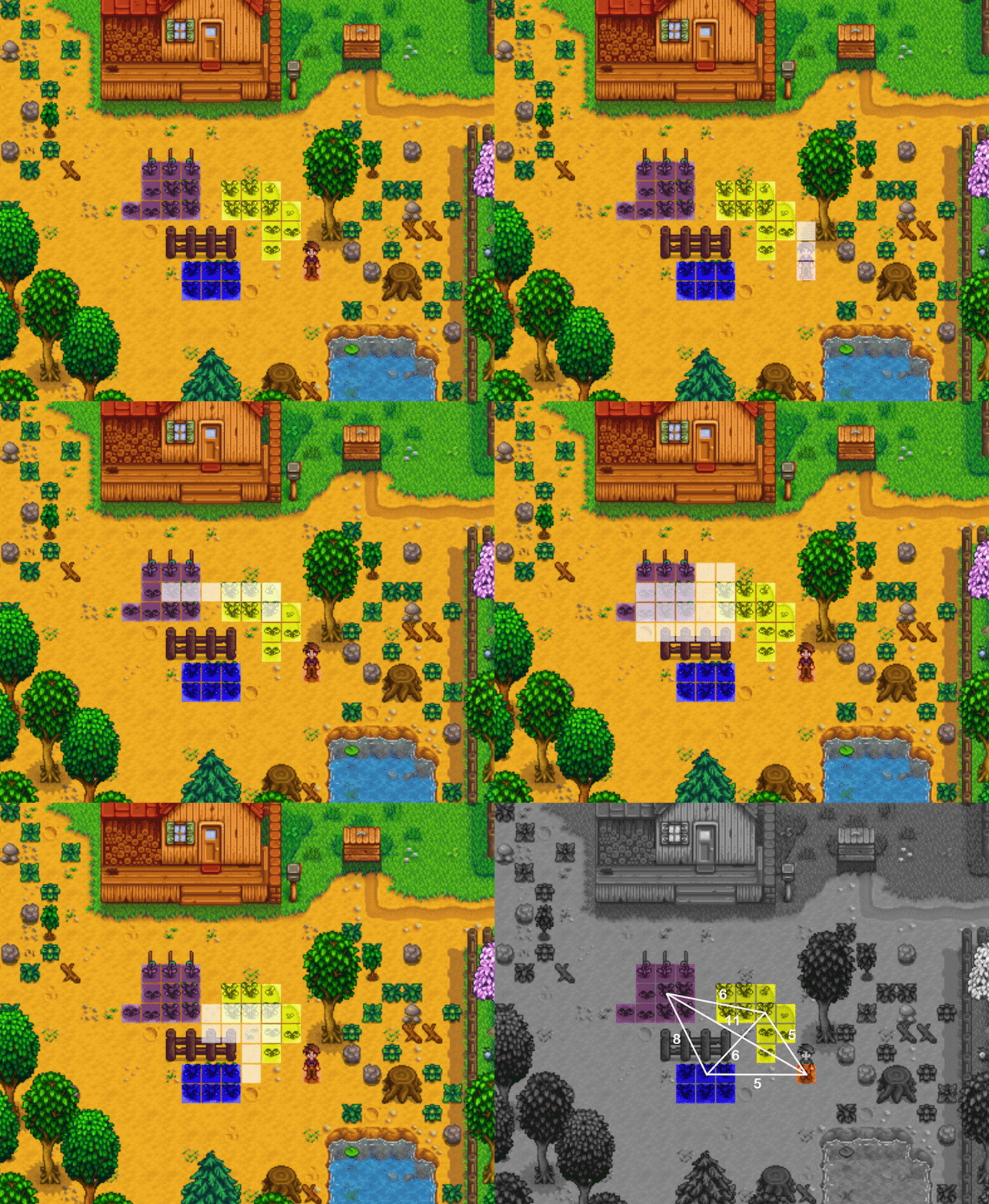
    4. Gruplar Arası Seyahat Maliyeti

    Bot daha sonra bir gruptan diğerine seyahat maliyetini belirlemek için A* yol bulma algoritmasını kullanır.

    Algoritma, her grubun merkezine en yakın karodan başlar.

    Her gruba seyahat maliyeti, oyuncunun mevcut konumundan da hesaplanır.

    Bu bize güzel bir maliyet matrisi verir!

    Oyuncu Mor Sarı Mavi
    Oyuncu -1 11 5 5
    Mor 11 -1 6 8
    Sarı 5 6 -1 6
    Mavi 5 8 6 -1

    Bu noktada ulaşılamayan gruplar dikkate alınmaz.

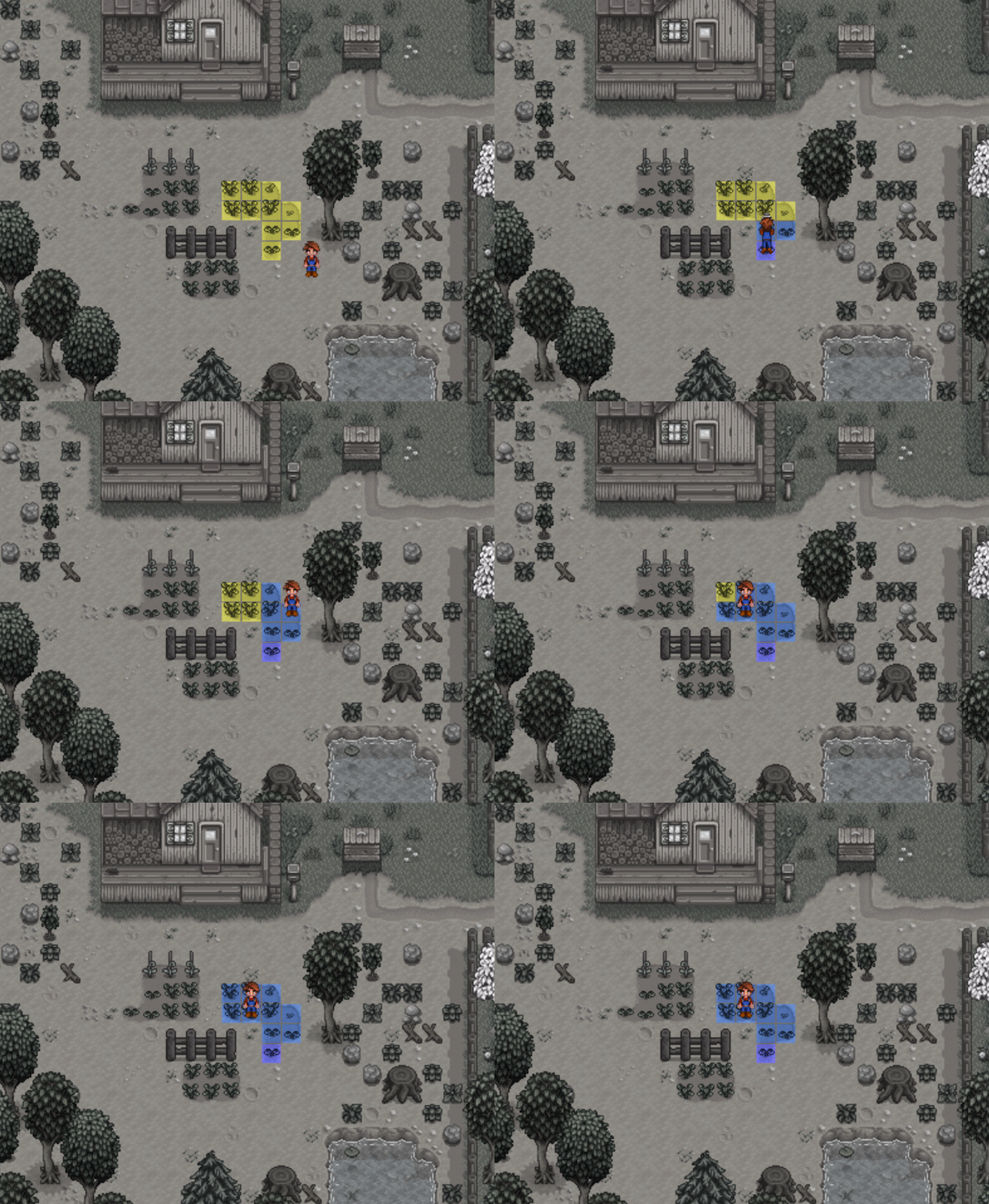
    5. Seyahat Eden Su Adamı

    Tüm gruplar arasında en kısa yolu bulmamız gerekiyor, başlangıç noktası oyuncunun mevcut konumu.

    Bot, seyahat eden satıcı problemini çözmek için açgözlü bir yaklaşım kullanır.

    Başlangıç noktası oyuncunun konumudur.

    6. Grubu Sulama

    Her grup için derinlemesine arama uygulanarak karolar doldurulur.

    Her karoda, tüm bitişik (artık köşegenler dahil) de sulanır. Bu, her bloğa yürümeyi atlayıp etrafımızdaki her şeyi sulayabileceğimiz anlamına gelir.

    Bir blok üzerine basılamıyorsa, bot en iyi seçeneği seçer ve oradan sular.

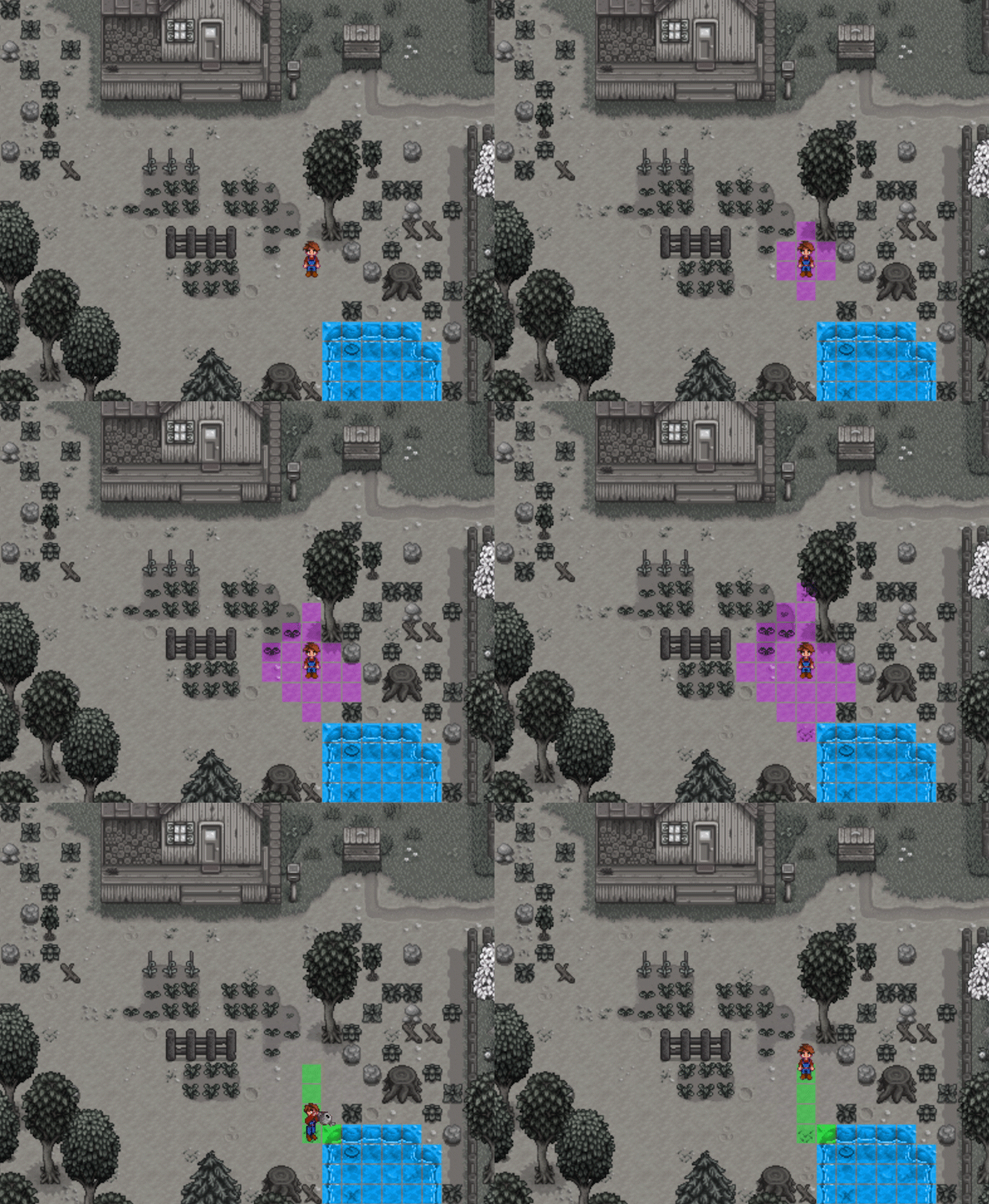
    7. Su Bitti!

    Sulama kabı azaldığında, bot en yakın su kaynağına gidip dolum yapar.

    En yakın doldurma noktası, oyuncunun konumundan genişleme araması kullanılarak bulunur.

    Nokta bulunduğunda, bot oyuncuyu suya en yakın noktaya yönlendirir, doldurur ve ardından sulamaya devam eder.

    Visit original content creator repository